How to Sell on Instagram in 2026: A Guide for Stores
How to sell on Instagram: professional account, shop requirements, product tags, DMs and ads that open a chat, with the steps Meta documents today.
 Nicolas ProvostOct 11, 2026 · 11 min read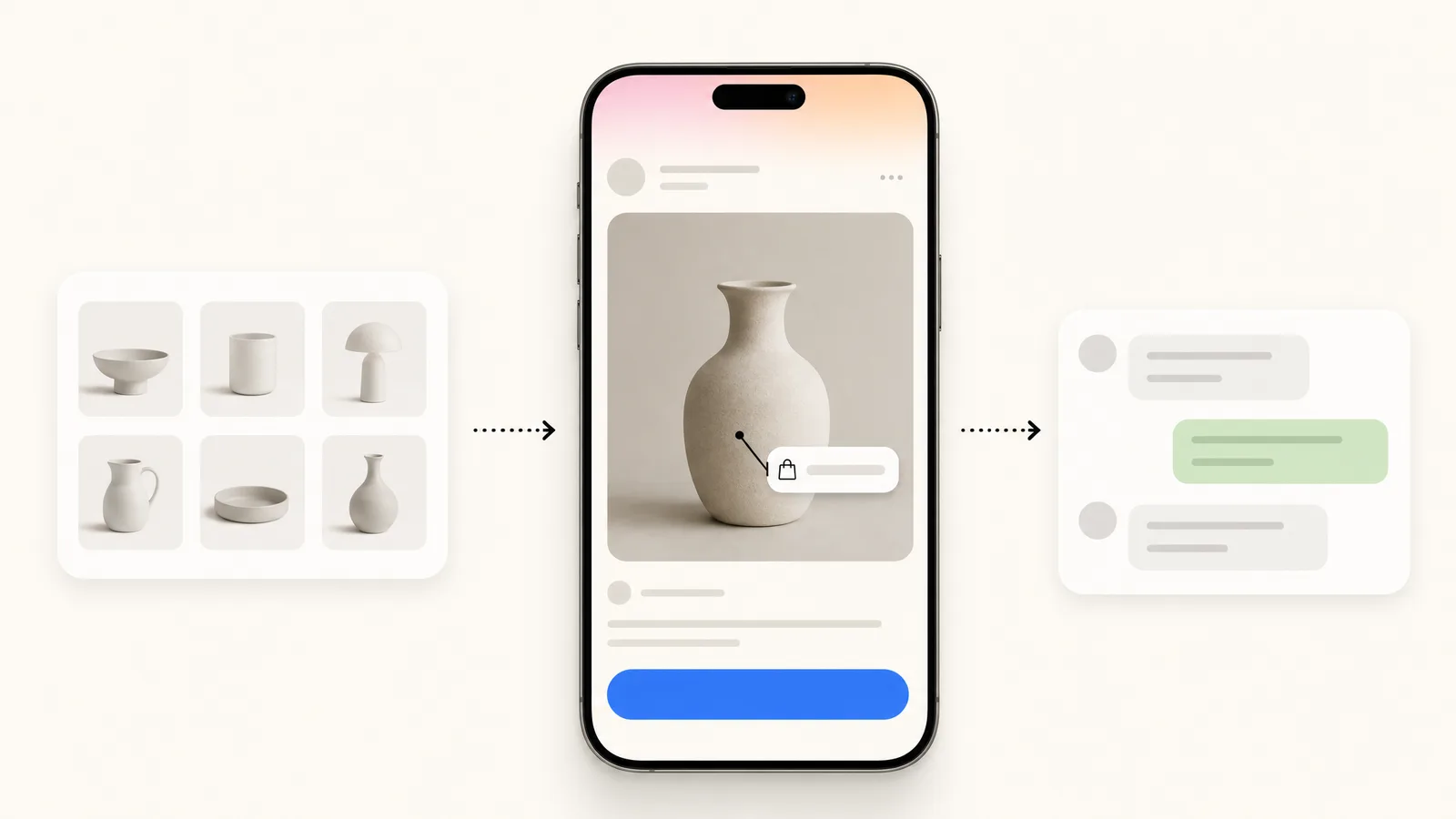
Summarize this article with an AI
 ChatGPT
 Claude
Table of contents (13)
Key takeaways
- Selling on Instagram takes a professional account, a product catalog, an approved shop and product tags, and the purchase ends on your own website.
- Since September 2025, Meta states that shops on Facebook and Instagram use website checkout, so checkout inside Instagram is no longer offered.
- The United States has the full Shops experience, while France and 19 other countries are in an open beta where some sellers may lack features.
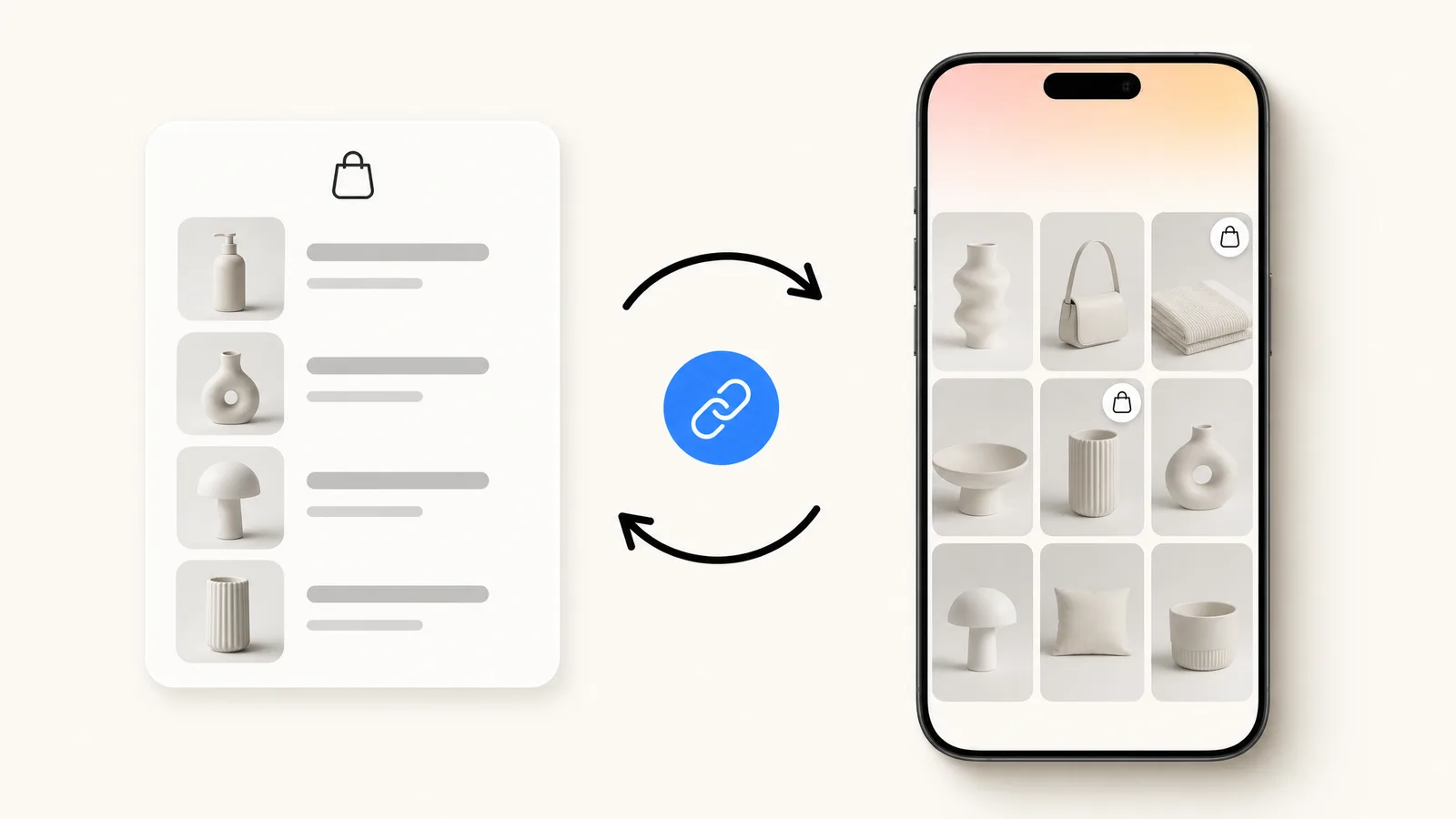
To sell on Instagram, you need a professional account, a product catalog connected to a shop that Meta has approved, and product tags on your posts: customers discover the product in the app and pay on your website. Since September 2025, Meta no longer offers checkout inside Instagram, in the United States or anywhere else, so the sale always ends on your own store.
This guide follows the path in order, with the menu paths from Meta's, Instagram's and Shopify's help pages, read on October 11, 2026. It also covers the conversational side of selling: DMs, ads that open a chat, and Instagram automation to answer at scale.
What are the steps to sell on Instagram?
| Step | Where | What you do |
|---|---|---|
| 1. Professional account | Instagram app | Switch to a business account |
| 2. Eligibility | Meta's help pages | Check the five commerce requirements and your country |
| 3. Catalog and shop | Commerce Manager, or your e-commerce platform | Connect products, add a checkout URL, publish the shop |
| 4. Product tags | Instagram app | Tag products in posts and stories |
| 5. DMs | Instagram inbox | Answer questions with product links |
| 6. Ads that open a chat | Ads Manager | Send ad clicks to Instagram Direct |
| 7. Automation | A tool on Meta's API | Answer comments, DMs and story replies automatically |
Step 1: switch to a professional account
Every selling feature starts here. Meta's set-up page gives the path in the Instagram app:
- Tap your profile picture in the bottom right to go to your profile.
- Tap the menu to open Settings and activity.
- Below For professionals, tap Account type and tools.
- Select Switch to professional account.
- Select your category, then choose Business.
- Add contact details, then, when offered, tap Log in to Facebook to connect a Facebook Page.
Meta presents the Facebook Page connection as optional, and adds that it "will make it easier to share Instagram posts on Facebook and use connected experiences such as ads and shopping tools". Two things to know before you tap: a private account becomes public when it turns professional, and you can switch back at any time.
Step 2: check that you are eligible
Meta lists five commerce eligibility requirements. Your Facebook account and Page, or your Instagram professional account, must:
- Comply with Meta's policies.
- Represent your business and your domain.
- Be located in a supported country.
- Demonstrate trustworthiness.
- Provide accurate information and follow best practices.
Meta warns that failing to meet them "at any time may lead to loss of access" to commerce features. Requirement 4 is the one new stores trip on. Shopify's help center, which relays Meta's error messages, explains that an account must have "an authentic, established presence" and that this "might also include maintaining a sufficient follower base". Neither Meta nor Shopify gives a number of followers.
United States versus France and other countries
The list of supported countries separates three groups:
| Group | Countries | What Meta says |
|---|---|---|
| Full experience for Shops and Shops ads | United States (excluding US territories) | Eligible for the full experience |
| Open beta | Canada, Brazil, Mexico, Denmark, France, Germany, Italy, Netherlands, Norway, Spain, Sweden, Switzerland, United Kingdom, Australia, India, Japan, Korea, Singapore, Taiwan, Thailand | "Some sellers may not have full capabilities" |
| Limited functionality | Ukraine, Indonesia | "Sellers won't be able to run Shops ads" |
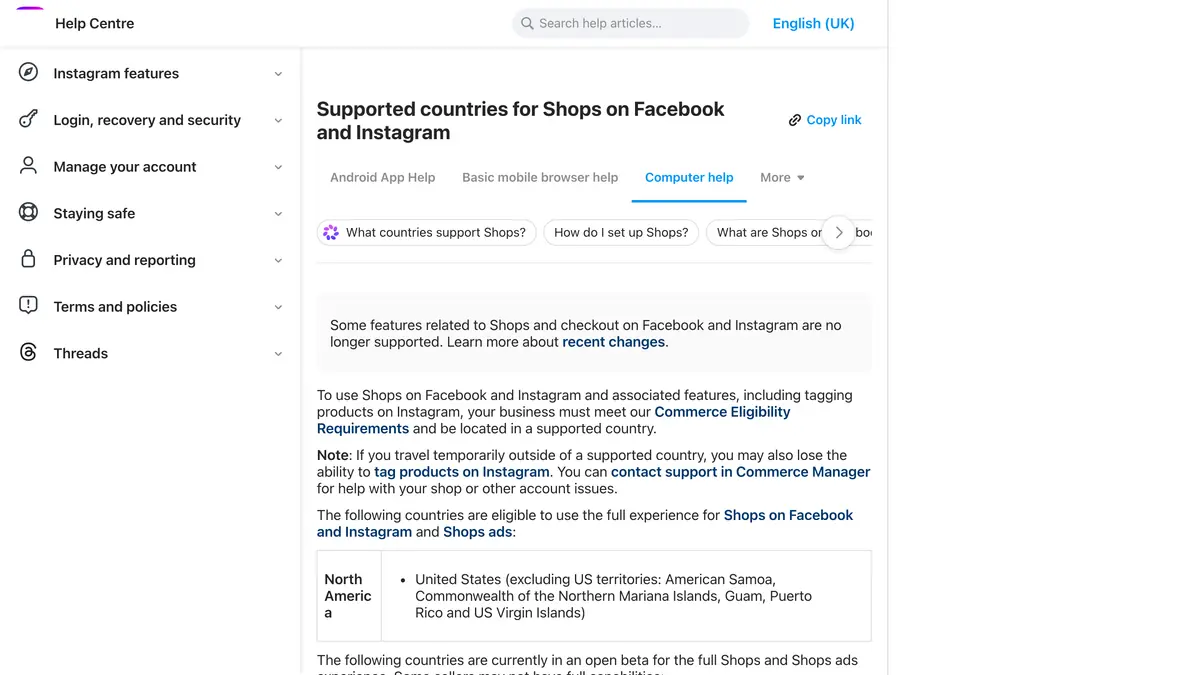
The location that counts is the one of your commerce account, which may be based on the country selected when the shop was set up in Commerce Manager or Shopify. Meta adds a detail that surprises merchants who travel: if you are temporarily outside a supported country, "you may also lose the ability to tag products on Instagram".
Is checkout on Instagram still available?
No. This is the main change of the last year, and many guides still describe the old situation, where US merchants could let customers pay without leaving the app.
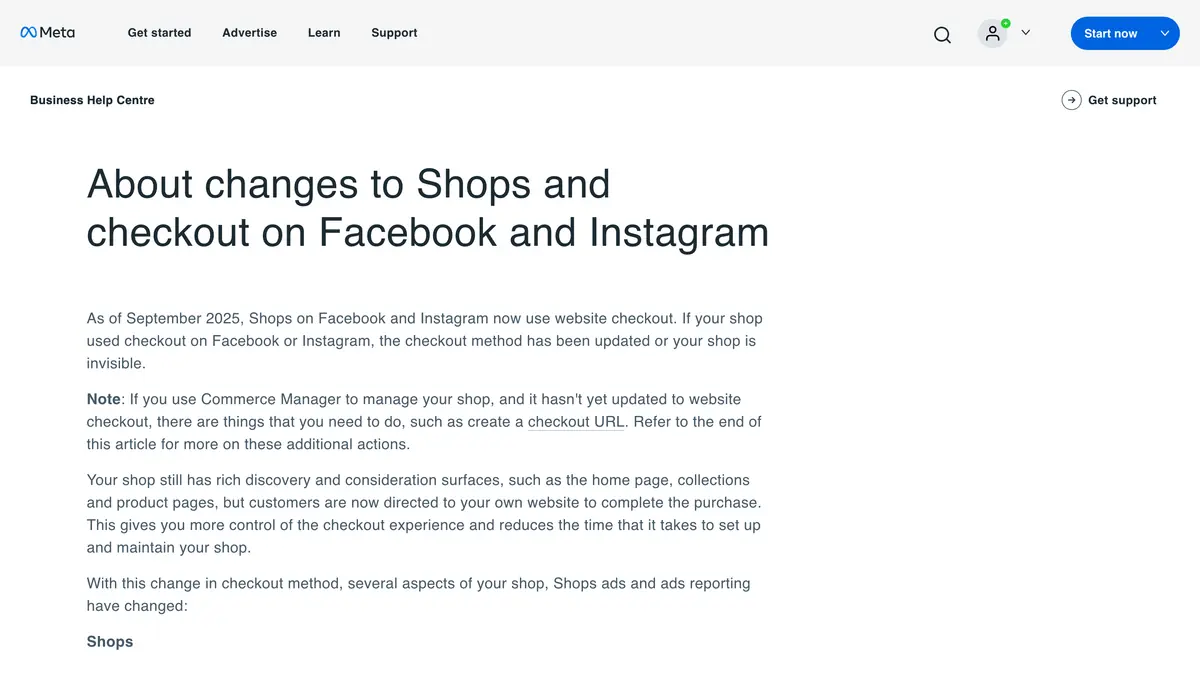
Meta's page about the changes to Shops and checkout states: "As of September 2025, Shops on Facebook and Instagram now use website checkout. If your shop used checkout on Facebook or Instagram, the checkout method has been updated or your shop is invisible." It continues: "Your shop still has rich discovery and consideration surfaces, such as the home page, collections and product pages, but customers are now directed to your own website to complete the purchase."
So the difference between the United States and France is no longer about checkout. It is about the maturity of the Shops experience (full in the US, open beta in France) and a few details: Shopify notes, for example, that collections sync to Facebook only for stores in the United States, and that merchants elsewhere create them in Commerce Manager.
For a merchant, the practical consequence is healthy: the order, the payment, the customer and the data all land in your own store.
Step 3: connect a catalog and set up your shop
There are two routes.
Through your e-commerce platform. Meta's page says that Shopify sellers "can easily create shops", and Shopify's Facebook & Instagram sales channel syncs your products to a Meta catalog. If your store runs on Shopify, follow our step-by-step guide to the Shopify and Instagram integration, which also covers what breaks and how to fix it.
Directly in Commerce Manager. Meta's page Set up a shop on Facebook and Instagram describes the tasks:
- Create a Commerce Manager account. If you only want to sell on Instagram, Meta says you do not need a Facebook business Page, but you need an Instagram business account in your business portfolio.
- Wait for the review of your commerce account. Meta writes that the review "can take up to 4 weeks".
- Optimize your catalog: select the catalog, add product variants.
- Set up a delivery profile: the countries you deliver to and at least one delivery speed.
- Add a checkout URL. Meta is clear: "You must add a checkout URL for your shop to be visible."
- Click Publish shop when every task is complete.
By default, all the products of the catalog are included in the shop, and you can control which ones appear.
Step 4: tag products in your posts
Product tags turn a post into a shop window. According to Instagram's help page, you need an eligible catalog in Commerce Manager, then:
- Tap Create and select Post.
- Select a photo or video and add a caption. Tap Next.
- Tap More options, then tap Tag products. Tap the products in the photo or video.
- Search for the products you want to tag and select them.
- Tap Done, then Share.
The limits Instagram documents: up to 20 products and shops in a photo feed post, and a total of 20 tags across all the media of a carousel. You can tag new and existing posts. For Reels, Instagram's page adds a note that product tagging "applies only to legacy shops catalogues". In stories, Shopify's help center specifies that product stickers work on image stories, not on videos.
Step 5: sell through DMs
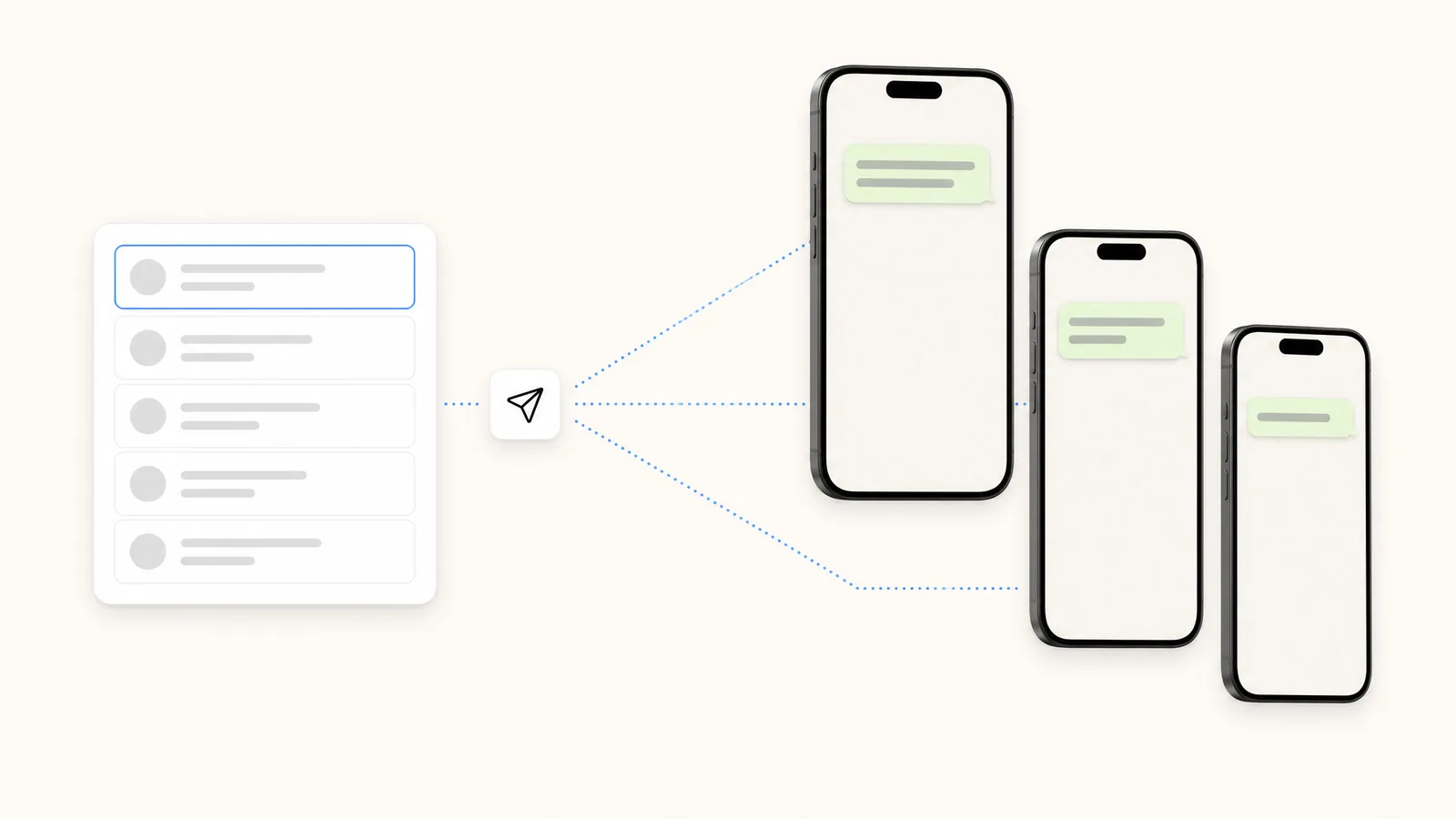
Part of the selling on Instagram happens in conversation: someone sees a post, asks whether the jacket runs small, and buys when the answer arrives quickly. Three rules from Meta's developer documentation shape what you can do when a tool sends the messages:
- A business can message a person only after that person has written to the professional account.
- The standard messaging window lasts 24 hours for most user actions, and messages sent inside it may contain promotional content.
- A comment allows one private reply, within 7 days.
Start with the native tools: frequently asked questions, saved replies and an away message, all explained in our guide to Instagram automatic messages. Then prepare your wording: our 27 Instagram DM templates cover product questions, size and stock, order status and comment replies.
Since checkout happens on your website, every selling DM ends the same way: a direct link to the product page or to the cart.
Step 6: run ads that open a DM
Ads that click to Instagram Direct appear in Instagram Feed or Stories and open a conversation with your business instead of a landing page. Meta describes their purpose plainly: "You can interact with people directly in Instagram messages to complete purchases, answer questions or offer support."
The steps from Meta's page on ads that click to Instagram Direct:
- Go to Ads Manager and select an objective: Traffic, Engagement, Leads or Sales.
- For traffic, engagement or sales, choose Message destinations as the conversion location. For leads, choose Instagram.
- In the Message destination section, select Instagram.
- Edit your audience, placements, budget and schedule.
- Select the ad format, then, under Message template, choose Create new or Use existing template.
- Click Publish.
Three points before you spend:
- Meta does not let you target these ads to people under the age of 18.
- The page carries a notice for some regions: "Certain messaging-related metrics, ad campaigns and organic messaging features for businesses and ads delivered to and from Europe and Japan will be unavailable." If you advertise from or to Europe, check in Ads Manager what your account offers.
- When a person sends their first message after clicking such an ad, Meta's policy says the messaging window "may last up to 7 days from that message", against 24 hours for most actions. That leaves more room to follow up.
An ad that opens a chat only pays if someone answers. That is the reason to plan step 7 before launching the campaign.
Step 7: automate the replies
Once posts, tags and ads do their job, the inbox becomes the bottleneck. Instagram automation tools connect to your professional account through Meta's Instagram messaging API and answer for you: a keyword in a comment sends the link, a story reply gets an instant answer, a product question is answered from your catalog.
ManyChat is the best-known tool of the category, and we explain its plans in ManyChat pricing explained and its triggers in ManyChat for Instagram: setup and rules. The mechanics of comment keywords are in our Instagram auto reply guide.
What Kanal does for Shopify stores
Kanal is our product, a paid Shopify app. Its Instagram automation page lists four blocks:
- Comment to DM: keywords under posts and Reels trigger DMs with links, products or codes.
- Auto replies: DMs, story reactions and frequent questions answered instantly from templates, the scope of Instagram auto reply.
- AI answers: product questions answered from your catalog by the Instagram AI chatbot, with a buy link. The AI agent is part of the Scale plan, at $149 per month.
- Shopify sync: products, carts and orders inform every automation.
Kanal works through Meta's official Instagram messaging API on your professional account, and the same inbox holds your Instagram and WhatsApp conversations. Instagram automation is included in Kanal's plans, from $89 per month, as shown on the pricing page.
A realistic order of work
- Week one: professional account, eligibility check, catalog connection. Submit the shop early, since the review can take up to 4 weeks.
- While you wait: set up frequently asked questions and saved replies, and write your DM templates.
- Once approved: tag products in your best existing posts first, then in every new one.
- When DMs become daily: add an automation tool, then test an ad that opens a chat with a small budget.
Each step is useful without the next one, which is the best reason to start today.
Sources
Read on October 11, 2026. The help pages below do not display a last-updated date.
- Set up a professional Instagram account, Meta Business Help Center
- Commerce eligibility requirements, Instagram Help Center
- Supported countries for Shops on Facebook and Instagram, Instagram Help Center
- About changes to Shops and checkout on Facebook and Instagram, Meta Business Help Center
- Set up a shop on Facebook and Instagram, Meta Business Help Center
- Add shopping tags to Instagram posts, Instagram Help Center
- Create ads that click to Instagram Direct in Ads Manager, Meta Business Help Center
- Messenger Platform and IG Messaging API policy, Meta for Developers (updated September 28, 2026)
- Instagram Shopping and Publishing products, Shopify Help Center
Join the Instagram early access program
- Comment to DM, auto-replies and AI answers as they roll out
- Priority onboarding with the Kanal team
- The full WhatsApp suite, included from day one
Early access opens progressively
See Kanal for Instagram@claire.mrn commented on your Reel: "LINK"
Here is the link you asked for. The Riviera set is back in stock.
- brands
- 500+
- to set up
- 5 min
- open rate on WhatsApp
- +90%
Nicolas helps e-commerce brands grow revenue with WhatsApp marketing. With deep expertise in Shopify ecosystems and conversational commerce, he shares proven strategies for abandoned cart recovery, broadcast campaigns, and AI-powered customer engagement.