WhatsApp Business Templates: 25 Meta-Ready Examples (2026)
WhatsApp Business templates on Meta: 25 examples by use case, the 3 categories, approval time (up to 24 hours), utility and authentication rules, costs.
 Nicolas ProvostMay 12, 2026 · 16 min read
Summarize this article with an AI
 ChatGPT
 Claude
Table of contents (42)
Key takeaways
- Any message a business sends outside the 24-hour customer service window needs a template approved by Meta, whose review can take up to 24 hours.
- The category sets the price, and in the US a marketing template costs $0.0250 per delivered message against $0.0034 for utility or authentication.
- A utility template must stay non-promotional and tied to the user's order or account, otherwise Meta categorizes and bills it as marketing.
WhatsApp Business templates are the gatekeeper between you and your customer's inbox. You can't send a single broadcast, cart recovery, or shipping update without one approved by Meta first. And here is the problem teams hit in 2026: a template gets rejected, and no one explains clearly why.
This guide gives you the 25 templates we have personally submitted and seen approved for Shopify merchants running through the WhatsApp Business API. You'll learn the 3 template categories, the costs attached to each, how to submit a template to Meta, the rejection reasons to avoid, and the personalization patterns worth testing against generic copy.
What is a WhatsApp Business template?
A WhatsApp Business template is a pre-approved message format that you store with Meta and reuse for outbound, business-initiated messages. Whenever your store wants to contact a customer outside the 24-hour service window (a window opens every time the customer messages you first), the only legal vehicle is a template.
Templates carry four moving parts:
- Header (optional): text, image, video, document, or location
- Body (required): the main message, with up to 1,024 characters and variables like
{{1}},{{2}} - Footer (optional): up to 60 characters of supplementary text
- Buttons (optional): up to 10 buttons total: quick replies, URLs, phone calls, copy code
Templates live in your WhatsApp Business Account (WABA) and are tied to a phone number. They are versioned, language-specific, and reviewed by Meta against the WhatsApp Business Messaging Policy.
If you are still framing the bigger picture, our WhatsApp Business API guide explains where templates sit in the broader WABA stack.
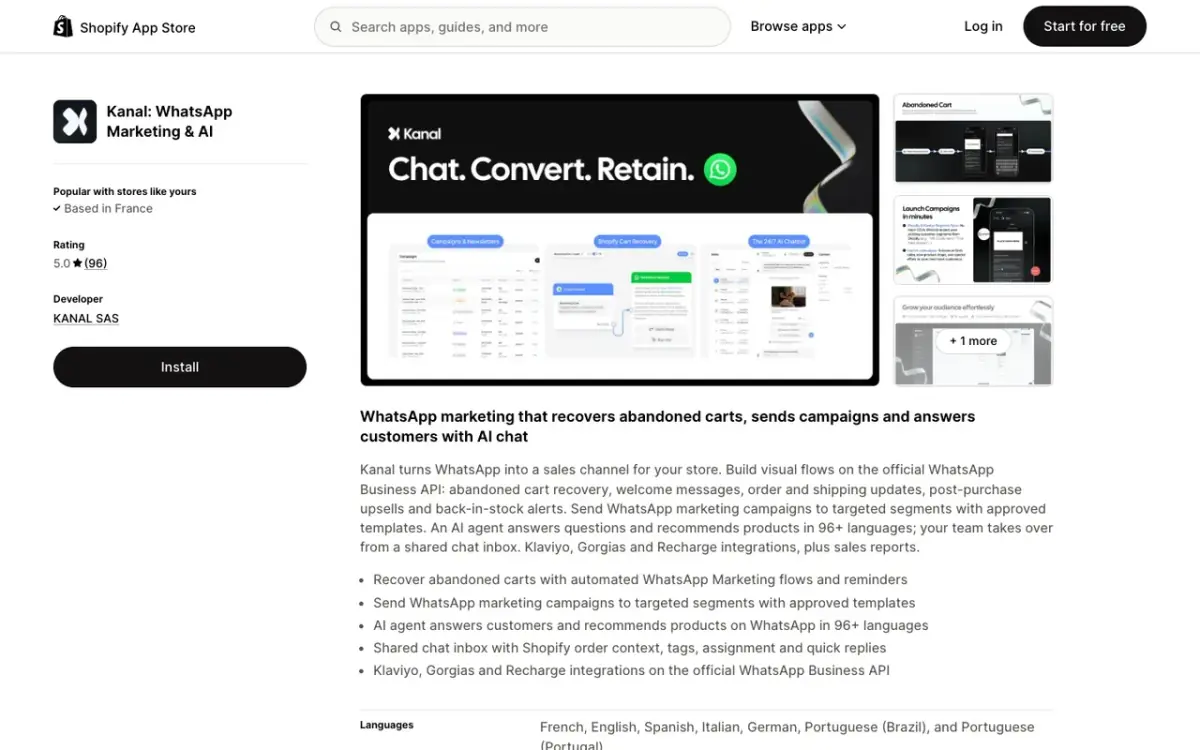
The 3 template categories (Marketing, Utility, Authentication)
In April 2023 Meta consolidated template categories into 3 buckets. The category drives the price you pay per message and the approval bar Meta applies. Picking the wrong one can get a template rejected or, worse, reclassified silently after launch.
| Category | Use case | Approval bar | Cost per delivered message (US) |
|---|---|---|---|
| Marketing | Promotions, newsletters, win-back, upsell | Strictest | $0.0250 |
| Utility | Order confirmation, shipping update, appointment reminder | Medium | $0.0034 |
| Authentication | OTPs, 2FA codes, login codes | Loose (fixed format) | $0.0034 |
| Service (not a template) | Free-form replies inside 24h window | No template needed | $0.0034 after 1,000 free per phone number each month |
US list rates read on Meta's rate calculator on October 7, 2026, under the rate card effective October 1, 2026 (Meta's pricing). Utility and authentication rates drop as your monthly volume grows. Since October 1, 2026, service messages cost the utility rate after 1,000 free service messages per business phone number each month.
Marketing templates
Anything intended to drive a sale, build awareness, or re-engage. WhatsApp newsletters, Black Friday broadcasts, post-purchase upsells. Marketing templates cost the most and require explicit user opt-in. They also count toward your WhatsApp marketing limits. One market is a special case: Meta does not currently deliver marketing templates to US phone numbers, as explained in our guide to WhatsApp marketing in the USA.
Utility templates
Transactional updates tied to an existing user action. Order placed, payment received, package shipped, refund processed. Utility templates are cheaper and harder to mis-classify if you keep the copy strictly factual. Avoid any promotional add-on like "and check our new collection here" in a utility template, Meta will flip it to marketing.
Authentication templates
OTPs and login codes. These have a fixed structure: a single variable, no marketing language, and an autofill button option for iOS and Android. If your Shopify store offers passwordless login or WhatsApp-based 2FA, this is the category you submit under.
Service messages
Service messages are not a template category: they are free-form replies sent inside the 24-hour customer service window, by a person or a third-party AI. They do not require a template. Since October 1, 2026, Meta charges them at the utility rate after 1,000 free service messages per business phone number each month (they were not charged between November 1, 2024 and September 30, 2026). The customer service window opens every time the customer sends you a message, and it stays open for 24 hours after their last message. For Shopify support flows, this is where most of your day-to-day inbox replies happen.
How to submit a template to Meta (step-by-step)
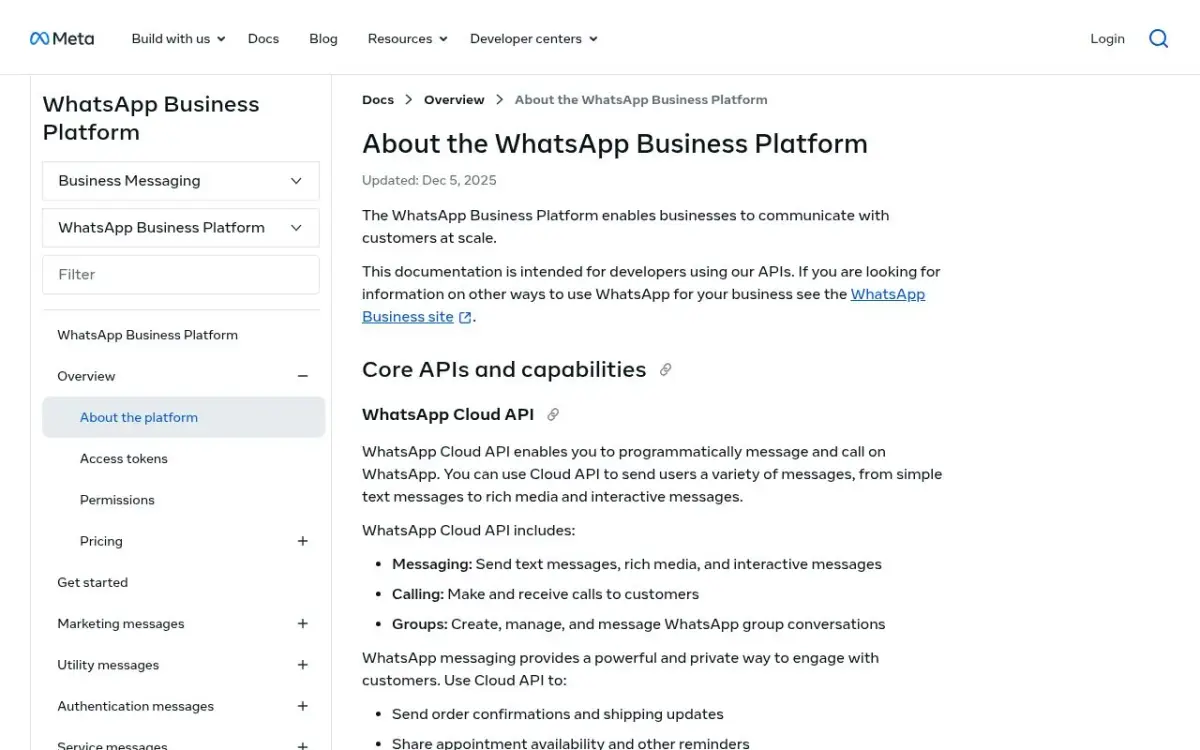
The submission flow has stabilized in 2026. Here's the playbook we use for every Kanal customer.
Step 1: Pick the right category
Re-read the 3 categories above and ask: would this message exist without the customer's prior action? If yes, it's likely marketing. If no, it's utility or authentication. When in doubt, submit as utility and let Meta correct you: since April 9, 2025, a utility submission that Meta judges promotional is approved as marketing instead of being rejected, so check the category shown once the template is approved.
Step 2: Draft the copy with variables
Use {{1}}, {{2}}, {{3}} for each dynamic field. Keep variables to the absolute minimum required and never use them for the entire body or at the very start or end of the message. Examples that get auto-rejected:
Hi {{1}}, here is {{2}}. {{3}}The body looks like a spam template. Add static framing around variables:
Hi {{1}}, your order #{{2}} has shipped via {{3}}. Track it here: {{4}} Thank you for your order.Step 3: Add buttons that drive intent
Buttons give the customer a one-tap next step instead of a link to copy or a reply to type. Three button types matter for e-commerce:
- Quick reply ("Track order", "Yes", "No, thanks"). Captures intent into your inbox
- URL (deep link to Shopify order status page). Drives traffic out to the store
- Copy code (discount code). For marketing templates with one-tap copy
Step 4: Submit through your BSP or Meta Business Manager
If you use a Business Solution Provider like Kanal, the template editor handles submission, validation, and the live status. If you're submitting through Meta directly, head to Business Manager > WhatsApp Manager > Message Templates > Create Template.
Step 5: Wait, test, deploy
Meta reviews templates automatically, and review can take up to 24 hours. Once the template is approved, send a test to your own number before adding it to any production flow. Templates can break running WhatsApp broadcast campaigns silently if a variable doesn't resolve.
Template approval: how long it takes and what Meta checks
How long does Meta take to approve a WhatsApp template?
Meta's documentation gives one figure: it can take up to 24 hours for an approval decision (Template review, read on October 7, 2026). Templates are reviewed automatically when you create or edit them, through a combination of automated systems and manual reviews. You learn the result in WhatsApp Manager, by email to your Meta Business Suite admins, and by webhook.
If a template is rejected, you can edit it and resubmit it, or appeal: Meta says an appeal is decided within 24 hours. The real bottleneck is rarely the review itself. It is the rejection you discover the day before a campaign, so submit templates several days ahead of a send.
What does Meta require for a utility template?
Meta's template category guidelines (read on October 7, 2026) set two conditions, and a utility template must meet both:
- It is non-promotional: no promotional or persuasive intent.
- It is either specific to or requested by the user (clearly related to their order, account, services or transactions), or essential or critical to the user, such as a safety alert.
A template with mixed content, for example an order update with a promotion, is treated as marketing. So is a template whose content is unclear, such as a body made of a single variable. A feedback survey only qualifies as utility if it refers to a specific order or interaction: Meta says a generic request for feedback will not be approved as utility.
What does Meta require for an authentication template?
Authentication templates are the most restrictive category. To be classified as authentication, a template must:
- come from the authentication templates of Meta's Template Library;
- include a one-time password button, such as copy code or one-tap;
- contain no URLs, media or emojis, with parameters limited to 15 characters.
Meta adds that only authentication templates can be used to send a one-time passcode: marketing and utility templates cannot.
25 template examples by use case
These are templates we have submitted and seen approved in 2026. Copy them, replace the variables, adapt the brand voice, and ship.
Cart abandonment (5 templates)
1. Soft reminder, 1 hour after abandonment
Hi {{1}}, you left {{2}} in your cart at {{3}}. Want us to hold it for you?
Tap below to finish checkout.
Buttons: Resume checkout (URL), Not now (quick reply)
2. Incentive, 24 hours after abandonment
Hi {{1}}, your {{2}} is still waiting. Here is 10% off if you finish today:
SAVE10. Valid for 24h.
Buttons: Use my code (URL), Copy SAVE10 (copy code)
3. Stock urgency, when inventory drops
Heads up {{1}}: only {{2}} units of {{3}} left in stock. Secure yours now.Buttons: Buy now (URL)
4. Social proof, 48 hours after abandonment
Hi {{1}}, {{2}} customers bought {{3}} this week. Yours is still in your cart.Buttons: Complete purchase (URL)
5. Last call, 72 hours after abandonment
Hey {{1}}, last chance: your {{2}} is about to be released back to stock.Buttons: Keep my cart (URL)
For a deeper walk-through of abandoned cart recovery flows, use these templates inside a 3-step automation.
Order confirmation and updates (5 templates)
6. Order placed (utility)
Thanks {{1}}! Order #{{2}} confirmed for {{3}}. You'll get a tracking link
once it ships.
7. Payment received (utility)
Hi {{1}}, we received your payment of {{2}} for order #{{3}}. Receipt: {{4}} Thank you for your order.8. Order shipped (utility)
Good news {{1}}, your order #{{2}} just shipped via {{3}}. Track it here: {{4}} Thank you for your order.Buttons: Track package (URL)
9. Out for delivery (utility)
Hi {{1}}, your order #{{2}} is out for delivery today. Estimated arrival: {{3}}.10. Delivered (utility)
Hi {{1}}, your order #{{2}} has been delivered. Enjoy! Reply if anything is off.Buttons: Leave a review (URL), I have a problem (quick reply)
Post-purchase and retention (5 templates)
11. Review request (utility, 7 days after delivery)
Hi {{1}}, how is your {{2}}? A quick 30-second review helps other shoppers a lot.Buttons: Rate my purchase (URL)
12. Replenishment reminder (marketing)
Hi {{1}}, it has been {{2}} days since your last {{3}} order. Time to restock?Buttons: Reorder now (URL)
13. Loyalty milestone (marketing)
You did it {{1}}, you just unlocked our VIP tier. Here is your perk: {{2}}.Buttons: View VIP perks (URL)
14. Birthday offer (marketing)
Happy birthday {{1}}! Here is 15% off the entire store today only: BDAY15.Buttons: Shop now (URL), Copy BDAY15 (copy code)
15. Win-back (marketing, 60+ days inactive)
Hi {{1}}, we miss you. Here is 20% off your next order: COMEBACK20.
Valid for 7 days.
Buttons: Use my offer (URL)
Newsletter and broadcast (5 templates)
16. Product launch (marketing)
Hi {{1}}, our new {{2}} just dropped. Get yours before it sells out.Buttons: Shop the launch (URL)
17. Flash sale (marketing)
Hi {{1}}, 24 hours only: {{2}}% off everything. Use code FLASH at checkout.Buttons: Shop the sale (URL), Copy FLASH (copy code)
18. Restock alert (marketing)
Good news {{1}}: {{2}} is back in stock. Limited quantity.Buttons: Buy now (URL)
19. Black Friday early access (marketing)
Hi {{1}}, you have early access to our Black Friday deals starting now.
Save up to {{2}}%.
Buttons: Shop early access (URL)
20. Newsletter digest (marketing)
Here is your {{1}} digest from {{2}}: new arrivals, best sellers, and
this week's pick.
Buttons: Read the digest (URL)
For a full broadcast strategy and segmentation framework, see our WhatsApp newsletter guide.
Customer service and authentication (5 templates)
21. Appointment reminder (utility)
Hi {{1}}, this is a reminder for your appointment on {{2}} at {{3}}.Buttons: Confirm (quick reply), Reschedule (quick reply)
22. Return received (utility)
Hi {{1}}, we received your return for order #{{2}}. Refund will be issued
within {{3}} business days.
23. Support ticket update (utility)
Hi {{1}}, your support request #{{2}} has been updated: {{3}}.Buttons: View ticket (URL)
24. OTP authentication
{{1}} is your verification code. For your security, do not share this code.Buttons: Copy code (autofill)
25. Account login alert (utility)
Hi {{1}}, a new login was detected on your account from {{2}} at {{3}}.
If this was not you, secure your account now.
Buttons: Secure account (URL), It was me (quick reply)
Top reasons templates get rejected (and how to fix)
Check your template against these rejection patterns before you submit it, whether through Kanal or directly in WhatsApp Manager.
Reason 1: Wrong category
Symptom: you submit a "thank you for your purchase, check out our other products" message as utility. Meta sees the upsell phrase and treats it as marketing. Since April 9, 2025, the template is no longer rejected for that reason: it is approved as marketing, and billed at the marketing rate each time you send it.
Fix: strip the promotional add-on and keep utility templates strictly factual. If you think Meta got the category wrong, you can request a review within 60 days.
Reason 2: Variables at the very start or end
Symptom: a body like {{1}} you have {{2}} off. Meta's Template review page (updated June 17, 2026, read on October 8, 2026) lists it among the common rejection reasons: "The message template cannot start or end with a parameter". The one exception is the authentication template, whose preset text is fixed by Meta and opens with the code.
Fix: wrap variables in static framing. Hi {{1}}, you have {{2}} off your next order.
Reason 3: Prohibited content
Symptom: alcohol, tobacco, gambling, weapons, pharmaceuticals, financial promises, dating, or political content. Meta auto-rejects all of these regardless of jurisdiction.
Fix: re-read the WhatsApp Business Messaging Policy and move the message to a different channel.
Reason 4: Misleading button labels
Symptom: button labeled "Yes" that actually links to checkout, or "Track order" that links to a marketing landing page.
Fix: match the button label to the destination exactly. "Track order" links to a tracking URL. "Buy now" links to a product page.
Reason 5: Duplicate or near-duplicate template
Symptom: you submit the same template under a slightly different name. Meta detects the duplicate and rejects the new version.
Fix: edit the existing template instead of creating a new one, or change the body meaningfully.
Reason 6: Variable count mismatch
Symptom: you declare {{4}} in the body but only provide 3 sample values during submission.
Fix: provide one sample value per variable and make the samples realistic, not "test test test".
Template variables and personalization best practices
Variables are where templates earn or lose their conversion rate. Three patterns are worth building into every template, then testing on your own sends.
Pattern 1: First name first, always
Opening with Hi {{first_name}} makes the message read like it was written for one person, not sent to a list. Capture the first name at opt-in and store it on the WhatsApp profile.
Pattern 2: Concrete numbers beat vague phrases
Save 15% on your next order tells the customer exactly what they get. Save big today makes them guess. Use real numbers, real product names, real timeframes.
Pattern 3: One CTA per template
One button gives the customer one obvious next step. Multiple buttons fragment intent. Pick the one action you want and remove the rest.
Variable hygiene checklist
- Provide fallback values for every variable in case the data is missing
- Never put a URL as a variable in the body: use a URL button instead
- Date and time variables: format them in the user's locale on your side, not via WhatsApp
- Currency: include the symbol in the static text, pass only the number as a variable
Common mistakes to avoid
Mistake 1: Forgetting opt-in proof
Meta can request proof of opt-in at any time. Without a documented opt-in flow, your number gets quality-flagged. Store the opt-in timestamp, source URL, and IP for every contact.
Mistake 2: Spamming the same customer
WhatsApp's quality rating drops fast when users mute, block, or ignore your messages. Cap broadcasts to 1-2 marketing templates per customer per week.
Mistake 3: Submitting without test data
Templates that pass review but break in production are usually missing realistic sample values. Submit with John Doe, Order #12847, Tracking ABC123, not xxx.
Mistake 4: Ignoring approved-then-rejected (paused) templates
A template can be paused after launch if it scores low quality. Watch the WhatsApp Manager > Insights > Templates view weekly.
Mistake 5: Hard-coding language
A template approved in en won't work for French customers. Submit one template per language, and route based on the customer's preferred language at send time. Your AI chatbot can detect language automatically and switch templates.
Conclusion
WhatsApp templates are a one-time investment with compounding returns. Spend 2 hours getting your first 10 templates approved cleanly, and you unlock every downstream flow: cart recovery, broadcasts, post-purchase, support automation. To see how approved templates plug into triggered sequences, read our WhatsApp automated message guide.
The three actions to take now:
- Audit your current templates against the 3-category framework above
- Submit the 25 templates in this guide adapted to your brand voice
- Connect your Shopify store to a WhatsApp Business API provider that handles template management and lifecycle for you
Want these 25 templates adapted to your store? Book a Kanal demo: we walk you through the submission and each flow on your own store.
Resources
See Kanal on your own store
- Your campaigns and cart reminders on WhatsApp, starting from your own store
- Post-purchase offers, back-in-stock alerts, then the AI agent that advises your customers
- You leave with the plan that fits and its price
From €89/month
- brands
- 500+
- to set up
- 5 min
- open rate on WhatsApp
- +90%
Nicolas helps e-commerce brands grow revenue with WhatsApp marketing. With deep expertise in Shopify ecosystems and conversational commerce, he shares proven strategies for abandoned cart recovery, broadcast campaigns, and AI-powered customer engagement.